


DreamShot - AI Image & Video
3.68.00 Reviews
App Specs
- Version
- 0.4.0
- Updated On
- License
- Free
- Downloads
- 100,000+
- Developer
- DooMoon
- Categories
- Video Players & Editors
- Platform
- Android
Screenshots
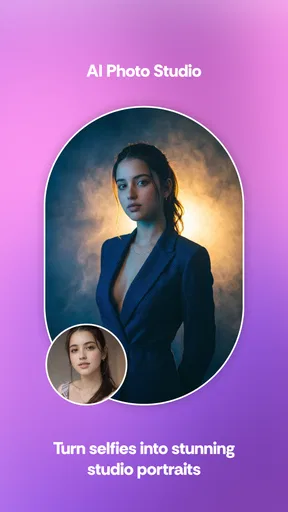
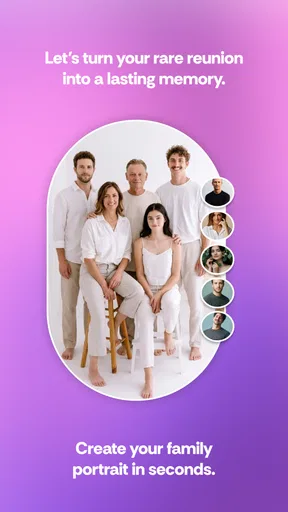
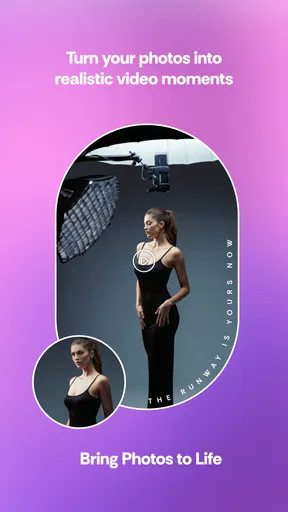
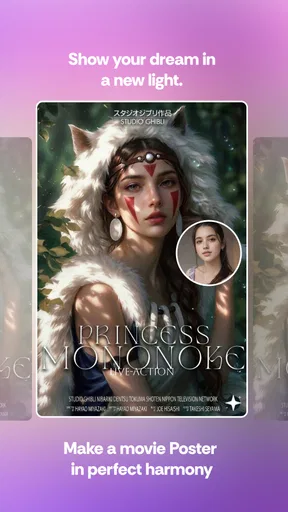
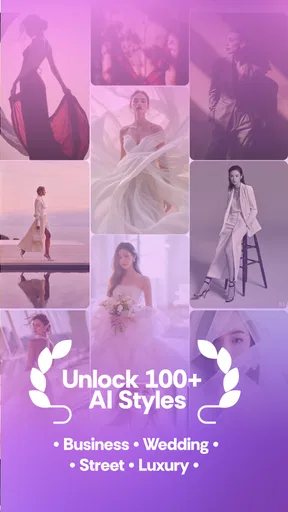
 Analysis by AppCompare
I’d consider DreamShot when I want a polished portrait or a striking visual without opening a full editing suite. It is an AI-focused app from DooMoon in the video and photo-editing space, aimed at generating images and video and giving selfies a studio-style treatment. That makes it appealing for quick social posts, profile pictures, or creative experiments, but it also sets a clear expectation: the results depend on what the app can generate, rather than on the precise manual control of a traditional editor.
A useful first test before committing
If I were trying DreamShot for the first time, I’d keep the opening project simple: one well-lit selfie and one clear goal. That lets me judge whether its generated style suits me without mixing several variables, such as a complicated pose and a dramatic visual direction. I’d also decide in advance what matters most—recognisable features, a professional mood, or a more imaginative result—because those priorities can pull in different directions.
This is especially helpful if I’m deciding whether it belongs in my regular toolkit. I would not begin by preparing a whole batch of profile images or making a high-stakes work portrait. A small trial tells me more about the fit of the app than a long session of retries, and it gives me a straightforward way to compare the finished image with the source.
Quick creative results, with a few trade-offs
I’d start this section by setting a practical expectation: DreamShot’s appeal is getting from a source photo to a new visual direction without doing every adjustment by hand. I’d still leave room to compare the result with the original and decide whether the change feels right. That balance between convenience and judgment is what makes the trade-offs worth considering.
What the speed promise means in practice
The central appeal is reducing the distance between an idea and a finished-looking image. Instead of building a portrait from scratch with layers, masks, and lighting adjustments, I can approach DreamShot with a selfie and a visual goal, then let its AI-led workflow do much of the transformation. That is useful when I need a presentable image quickly and don’t want to learn a complicated editing interface.
Still, “quick” should mean less hands-on editing, not a guarantee that every result will be instant or ready to publish. AI creation often involves choosing an input, making decisions about the desired look, and reviewing what comes back. If the first output misses the likeness or mood I wanted, I may need to try again or choose a different starting photo. The time saved is most convincing when I have a flexible brief, such as “make this feel more like a professional portrait,” rather than a highly specific composition that must match a reference exactly.
I’d treat the first result as a draft, not an automatic final. Before sharing a generated headshot, I would check facial details, hair edges, clothing, and background for odd transitions. A picture can look convincing at thumbnail size but reveal AI quirks when opened full-screen. This quick review is a small step, yet it matters more for a work profile or portfolio than for a temporary social post.
Worth Reading Before You Choose

Flipboard Shows What News Apps Must Do Beyond the Feed

Switching to Android Auto Means Rethinking Your Driving Routine

Google Calendar Makes a Crowded Week Easier to Manage

Ludo King Makes the Most of the Minutes Between Plans

Baby Panda World Brings Quick Play to Modern Phones, but Its Game Library Feels Busy

ESPN’s Live Game View Makes Following Close Games Easier
Where it fits in a real routine
A practical use case is refreshing a profile photo when I don’t have time to arrange a proper photo session. I could start with a well-lit selfie, use the app to create a more polished presentation, and compare the result with the original before deciding whether it still feels like me. The useful part is not simply adding a studio-like finish; it is getting a candidate image to evaluate without setting up lights, a backdrop, and a camera.
For a creator, the video and image angle can also help with brainstorming. I might want a visual starting point for a post, an alternate look for a campaign concept, or a short piece of AI-made content to test an idea. DreamShot is more relevant in that exploratory stage than when I already know the exact edit I need. If I’m trying to preserve a specific brand color, match several images precisely, or make frame-by-frame corrections, a conventional editor gives me clearer control.
One helpful workflow is to choose the source image deliberately before opening the generation process. A clear face, straightforward framing, and uncluttered lighting give the app less ambiguity to interpret. That does not guarantee a perfect result, but it can reduce the chance that the AI has to guess at important details. I would keep a copy of the original separately, too, so I can compare versions and return to the authentic photo if the generated look feels overdone.
What happens during heavier use
Repeated generation is where the convenience can become a trade-off. If I’m exploring several looks or making multiple versions for a post, the work shifts from editing individual pixels to judging a succession of outputs. That can be enjoyable for a mood-board-style session, but it also makes it easier to lose track of which version best preserves the person’s appearance. I’d save or note the strongest candidate as I go rather than assuming the latest attempt is automatically the best.
AI image and video work may also feel more demanding than a simple crop or filter because the app is doing more than adjusting a slider. I would avoid starting a large creative session when my phone is already busy with other demanding tasks, particularly if I want to judge output carefully rather than rush through it. That is a sensible expectation for this kind of tool, not a claim about a particular processing time or device temperature.
There is also a creative cost to endless retries: the more alternatives I inspect, the more likely I am to choose a striking image that no longer resembles the original person. For a playful post, that may be exactly the point. For a professional headshot, I’d set a boundary before generating: keep the face recognisable, use a restrained look, and stop once I have a credible option. That simple rule makes the app more useful than chasing an idealized result indefinitely.
Reliability means checking the output
I would judge reliability here by whether the app helps me reach a usable result consistently, not by expecting every generated image to behave like a predictable filter. A conventional brightness adjustment has a clear, repeatable effect; an AI makeover has to interpret the source and the requested style. That gives DreamShot room to produce more dramatic changes, but it also means I should inspect each result rather than assume a prompt or choice will be applied identically every time.
For anything important, I’d build a small recovery habit into the workflow. Keep the original selfie, avoid deleting a version until I have checked the replacement, and make sure the finished image is actually saved where I expect before closing the app. Those are ordinary precautions, but they matter when a creative result is generated rather than recreated with a series of easily repeated manual adjustments.
If an output looks wrong, I would first change the input photo or simplify the creative direction instead of repeating the same attempt without thought. A clearer source can solve problems caused by shadows or busy backgrounds, while a less ambitious style can help when the result looks too artificial. This approach gives me a practical way to recover from a disappointing result without assuming there is a particular restore or history feature.
Choosing the right source and workflow
For a day-to-day example, imagine I need a new profile image before updating a work account, but I only have a casual selfie from a bright room. I’d crop out distractions, choose a version where my face is unobscured, and try a modest professional look rather than asking for a dramatic makeover. Then I’d check the image at full size and ask whether colleagues would recognise me. If the answer is uncertain, I’d use the original or take a fresh photo instead of trying to fix every mismatch with more generations.
For social content, I’d use a different standard. A stylised result can be valuable precisely because it departs from reality, so I might explore more expressive alternatives and choose one that communicates the post’s mood. The trade-off is that a striking image may be less useful as a consistent personal or business portrait. Thinking about where the image will appear before generating helps me avoid confusing “interesting” with “appropriate.”
When working on several related images, I’d test the visual direction on one image first. If it feels right, I can decide whether to continue; if not, I have not spent time reviewing a whole set with the same unwanted look. This is a practical way to limit repetitive decisions, particularly for a creator who wants ideas rather than a fully controlled, uniform campaign.
Device fit, cost, and alternatives
DreamShot is free to install and is rated for Everyone, with in-app purchases offered at $9.99 to $34.99 per item. I would explore the basic workflow before paying for anything and decide whether the results suit my needs first. That is especially sensible for a tool whose value depends on personal taste: one person may love an expressive AI look, while another may find the same transformation too far from their real appearance.
The app’s current version is 0.4.0, and it requires Android 9 or later. I’d check that requirement before planning to use it on an older Android phone. On any device, I’d also leave enough room to work comfortably with source images and finished creations. I wouldn’t assume a particular storage footprint or processing speed; those can vary with the phone and the kind of task. If my device struggles with other creative apps, I would try a modest project first rather than beginning with a long session.
DreamShot has a 3.6 average rating from around 470 ratings and more than 100,000 installs. I see that as a reason to approach it with curiosity rather than as proof that it will suit every workflow. Ratings can reflect different expectations: someone wanting a playful transformation may judge it very differently from someone expecting precise retouching controls or a dependable professional production tool.
Compared with a standard photo editor, DreamShot’s strength is the possibility of a larger AI-driven change with less manual work. A traditional editor is usually the better choice when I need exact cropping, predictable color correction, careful retouching, or repeatable edits across a set of photos. A dedicated video editor is a better fit when timing, transitions, sound, and detailed clip arrangement matter more than generating a new visual. DreamShot sits between those needs: it is for creating or transforming material, not necessarily for managing every part of a finished production.
What to expect from video and image creation
The app’s focus spans both images and video, but I’d choose it based on the specific result I need rather than assuming those workflows are interchangeable. A portrait is easy to judge as a single finished frame; video asks me to consider whether the visual works over time and fits the rest of a post. If my priority is a carefully assembled clip with precise pacing, I’d plan to use a dedicated editor for that part of the job.
For a quick concept, though, generated material can be a useful starting point. I might make a visual to test whether a post idea has the right mood, then decide whether it is strong enough to share or merely helps me plan a more controlled edit elsewhere. This keeps expectations realistic: I’m using AI creation to explore possibilities, not treating it as a guarantee of a finished, production-ready piece.
Who will enjoy it—and who may not
I’d recommend trying DreamShot if you like experimenting with portraits, need a quick visual concept, or want to see how an ordinary selfie might look with a more refined presentation. It is particularly appealing when speed and creative exploration matter more than exact control. Someone making casual social content can accept a little variation and choose the output that feels right.
I would skip it as my main tool if I need guaranteed likeness, detailed retouching, consistent brand assets, or dependable control over every visual element. It is also not the right shortcut if I expect an AI result to replace a carefully planned photo session in every professional context. A generated headshot can be a convenient option, but I would use my judgment about whether the final image is appropriate for the audience and still represents me honestly.
My performance verdict
DreamShot is best understood as a fast creative assistant, not a complete replacement for a photo or video editor. Its promise is most useful when I have a clear but flexible goal, a decent source image, and time to review the result instead of accepting the first version blindly. The more exact the brief, the more I would lean on a conventional editor or a real camera workflow.
With a 3.6 average and eight written reviews, there is some user feedback to consider, but I would still make my own decision by trying a small, low-stakes project first. The app is free to start, while optional purchases make it worth checking how much of the workflow I actually want before spending. My main advice is to protect the original photo and judge the generated image at full size, not just by its first impression.
Overall, I’d give DreamShot a try for playful portraits and quick visual ideas, especially if I enjoy comparing alternatives. I would not rely on it alone for precision work or a high-stakes image. Used with realistic expectations, it can shorten the path from a selfie to an interesting candidate; the final decision about whether that candidate is convincing still belongs to me.
Pros
- Combines AI image and video generation in one app.
- Useful for turning creative ideas into visual content.
- Can help create polished visuals without advanced editing skills.
- Offers a convenient way to experiment with AI-generated media.
- Suitable for making shareable content for social platforms.
Cons
- AI-generated results may not match the prompt precisely.
- Video generation can take longer than creating still images.
- Some features or creations may require a paid plan.
- Results may need retries or edits to look right.
- Requires an internet connection for AI generation.
FAQs for DreamShot - AI Image & Video
What is DreamShot - AI Image & Video?
DreamShot - AI Image & Video is an AI-powered creative app designed to help users make images and videos from prompts, photos, or available editing options. The exact tools and output styles may vary by app version, so check the current feature list before downloading. It may suit casual creators who want to experiment without using a complex desktop editor, though results can depend on the prompt and selected settings.
How do you create an image or video in DreamShot?
The usual workflow in an AI creation app is to choose an image or video tool, enter a text prompt or select a source photo, adjust any available style or generation settings, and start processing. DreamShot’s interface and options may change between releases, so follow the in-app instructions for the current steps. Clear, specific prompts generally give the AI more direction, but generated results may still require several attempts.
Is DreamShot free to use, or does it require a subscription?
Check DreamShot’s store listing and the app’s purchase screen before committing, because pricing, free usage limits, trials, and subscription options can change by region or over time. Some AI apps allow limited generations at no charge and reserve additional credits, faster processing, or premium features for paid plans. Review the renewal period and cancellation terms carefully, and confirm any in-app purchase before approving it.
Does DreamShot require an internet connection, and what permissions might it need?
AI image and video generation commonly relies on online processing, so DreamShot may need an internet connection for core creation features, account access, or downloading results. If you import photos or save creations, the app may request access to your photo library or storage; camera or microphone access may be relevant to particular tools. Grant only permissions that match features you intend to use, and consult the app’s privacy information for data-handling details.
Can I use DreamShot creations commercially, and are there any limitations?
Commercial rights for AI-generated images and videos depend on DreamShot’s current terms, your subscription status, the content you provide, and applicable laws. Do not assume that every output is cleared for advertising, resale, or use involving recognizable people, brands, or copyrighted material. Review the app’s licensing and content rules before publishing or selling creations, and remember that AI results can contain errors or unintended details that need checking.


